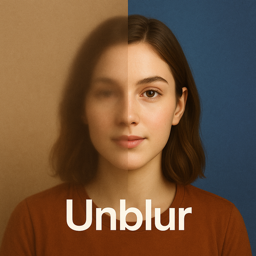
How to unblur a face in a photo

Kilglass National School, County Galway. National Library of Ireland, no known restrictions.
.jpg)
Use a dedicated face restoration tool rather than a general sharpening pass. In UnblurApp, choose Restore Faces: the model works specifically on eyes, mouth and hair boundaries, which is where general enhancement produces the waxy look you are trying to avoid.
Why faces need their own model
A general sharpening algorithm has no idea what it is looking at. Given a soft portrait it finds every contrast boundary and hardens it, including skin texture and sensor noise. The output looks like it has been sanded: smooth in the wrong places, crunchy in the others.
A face model knows the structure. It knows an eye has a pupil, an iris and a catchlight, that eyelashes radiate in a particular direction, that a mouth has a defined edge and skin does not. Given a smudge where an eye should be, it rebuilds an eye.
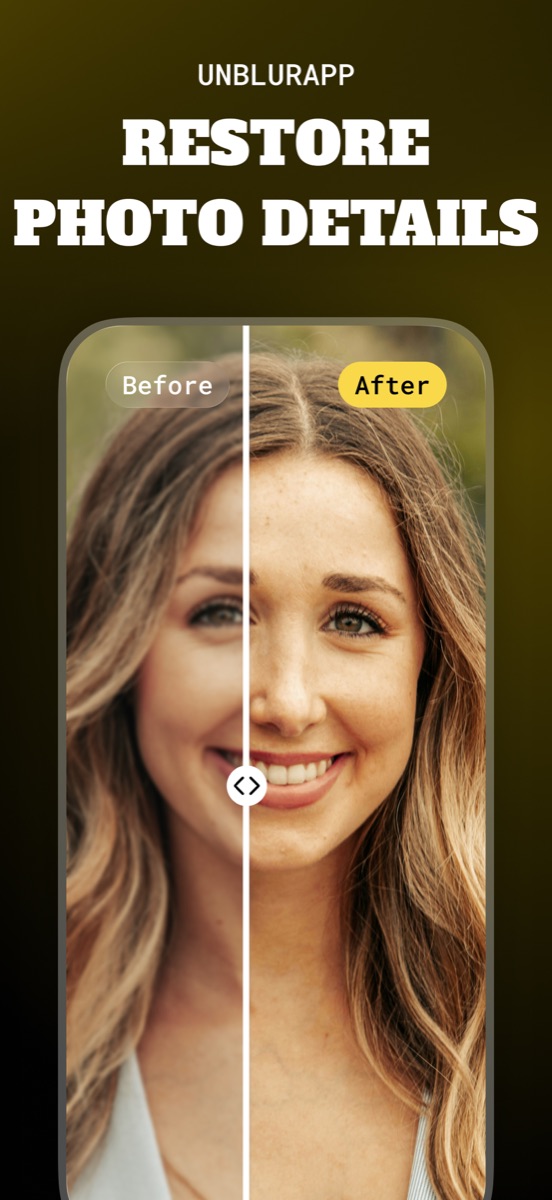
Unblur a face in three taps
- Open Restore Faces
Pick it from the restoration tools on the home screen, not the general Enhance button.
- Select the photo
Group shots work too. The model finds and processes each face separately.
- Check the eyes, then save
Drag the comparison slider and look at the eyes first. That is where a bad result shows itself.
If the photo is both blurry and damaged, run Repair first so the face model is not trying to reconstruct an eye through a crack.
How to tell a good result from a bad one
Look at the eyes at full zoom. Real eyes have asymmetry: one catchlight slightly different from the other, a lower lid that is not a clean arc. When a model has over-reached, the eyes come back matched, glassy and doll-like.
Then check the skin. Some texture should survive. Skin rendered as a smooth gradient is the signature of over-processing, and it reads as artificial even to people who could not say why.
The identity problem
This is worth being clear about. When a face is badly degraded, the model produces a plausible face, not the correct one. Someone who knew the person will often say the result looks almost right, and that gap is the reconstruction showing through.
The practical rule: the more of the face was missing, the less the output should be treated as a record. For a family photo, a face that is nearly right is still a face you are glad to see. For identification of any kind, it is worthless and potentially misleading.
Group photos and old class pictures
These are the best use of the tool. A 1970s class photograph holds thirty faces at maybe forty pixels each, and none of them are individually legible. Face restoration processes each one, and people who have not seen themselves at that age in decades suddenly can.
Expect variation across the frame. Faces near the centre, larger and better focused, come back convincingly. Faces at the edge, small and partly turned away, are the ones to check before you share the picture around.
Questions people also ask
Can you unblur a face that is very small in the photo?
Up to a point. A face forty pixels across can be reconstructed into something recognisable. Below roughly twenty pixels the model is inventing more than it is restoring.
Does face restoration work on more than one person at a time?
Yes. Each face in the frame is detected and processed separately, which is why group shots and class photos work well.
Related guides

How to unblur a photo on your iPhone
Unblur a photo in three taps. What causes blur, which blurry pictures can actually be saved, and how to remove blur from a photo on iPhone.
Read the guide →
How to restore old photos
Restore old photos without a scanner or Photoshop. How to capture prints properly, what AI restoration fixes, and how to make old photos look new.
Read the guide →
How to restore old damaged photos
Repair damaged photos with cracks, scratches, tape marks and torn corners. How to handle a fragile print, capture it safely, and rebuild it with AI.
Read the guide →