
Phone photo tools compared
For a recent phone photo that came out slightly soft, the tool already on your handset is usually enough and costs nothing. Samsung Remaster and Google Photos Unblur both do a competent one-tap job. They stop being useful on old scans, physical damage, small faces and heavily compressed files, which is the gap a dedicated restorer fills.
What each tool actually is
Samsung Gallery, Remaster picture. Built into One UI, reached from the viewer menu or the edit screen. One tap, no options. It sharpens, lifts contrast and reduces noise together, which is a sensible combination for a recent photograph.
Google Photos, Unblur. In the editor under Tools. It launched as a Pixel feature and later reached Google One subscribers on other Android phones, so its availability depends on your handset and subscription rather than on the app version.
iPhone Photos. There is no AI deblur here. The editor offers sharpness, definition and noise reduction sliders, which are conventional filters and cannot rebuild missing edges.
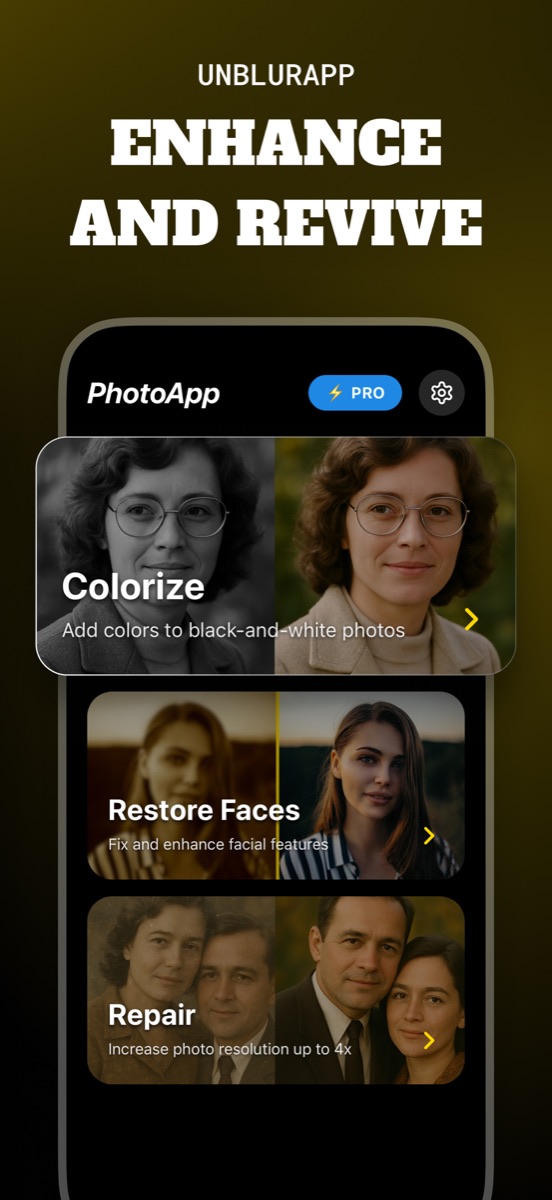
A dedicated restorer. Separate models for separate problems, which is the structural difference. Deblur, upscale, damage repair, face restoration and colorization are different jobs, and a single button cannot be tuned for all of them at once.
Where the built-in tools win
They are free, already installed, and they run instantly on a photo taken last week. For a slightly soft snapshot, a group photo from a restaurant, or a picture where you just want more contrast, the answer is genuinely to use what you have.
They also keep everything on the device, which matters if the photograph is private. Nothing has to leave your phone for a Remaster pass.
Where they run out
Four cases defeat them fairly consistently. Scans of old prints, where fading and physical damage matter more than sharpness. Heavily compressed images, which need generated detail rather than sharpening. Group photos where each face is tiny, since neither tool runs a portrait-specific model. And anything needing a real resolution increase for printing.
None of that is a criticism. These features are built to improve recent phone photographs quickly, and they do that well.
A sensible order to try things
Open the photo in your gallery app and use whatever one-tap enhancement it offers. If the result is good, you are finished and you have spent nothing.
If it is not, look at why. Soft but recent means try a dedicated deblur. Old and faded means Repair. Blocky means upscale. A face that stayed mushy means the portrait tool. Matching the tool to the failure is most of the skill here.
What about desktop editors
Photoshop and Lightroom give you real control and will beat any automatic tool in skilled hands. They also assume you know what you are doing, and for a single photograph you want to send to a relative this evening, the learning curve costs more than the result gains.
The exception is a photograph that genuinely matters. For that one, either learn the desktop tools or pay a retoucher, and treat the app result as the fast version rather than the final one.
Questions people also ask
Is Samsung Remaster picture as good as a dedicated app?
For recent phone photos, often yes, and it is free and already installed. It falls behind on old scans, physical damage and small faces, because it applies one general treatment rather than a model matched to the problem.
Does the iPhone have a built-in unblur tool?
No. The Photos editor offers sharpness and definition sliders, which raise contrast on edges that already exist. They cannot rebuild detail the way an AI deblur pass does.
Related guides
How to unblur a photo on Android
Unblur a photo on Android. What Samsung Gallery and Google Photos can already do for free, where they stop, and what to use when they do.
Read the guide →
Choosing the best app to unblur photos
Choosing an app to unblur pictures? Here are the five things that separate a useful photo unblur app from a watermark factory, and how UnblurApp compares.
Read the guide →
How to unblur a photo on your iPhone
Unblur a photo in three taps. What causes blur, which blurry pictures can actually be saved, and how to remove blur from a photo on iPhone.
Read the guide →