
Fixing blurry WhatsApp photos
Compression, not blur. Which means the usual fix is the wrong one.
Why WhatsApp photos come out this way
Messaging apps recompress images on the way through, and a photo forwarded four times has been through four rounds of discarding detail. What arrives is not a soft version of the original, it is a smaller approximation of it.
What to run, and in what order
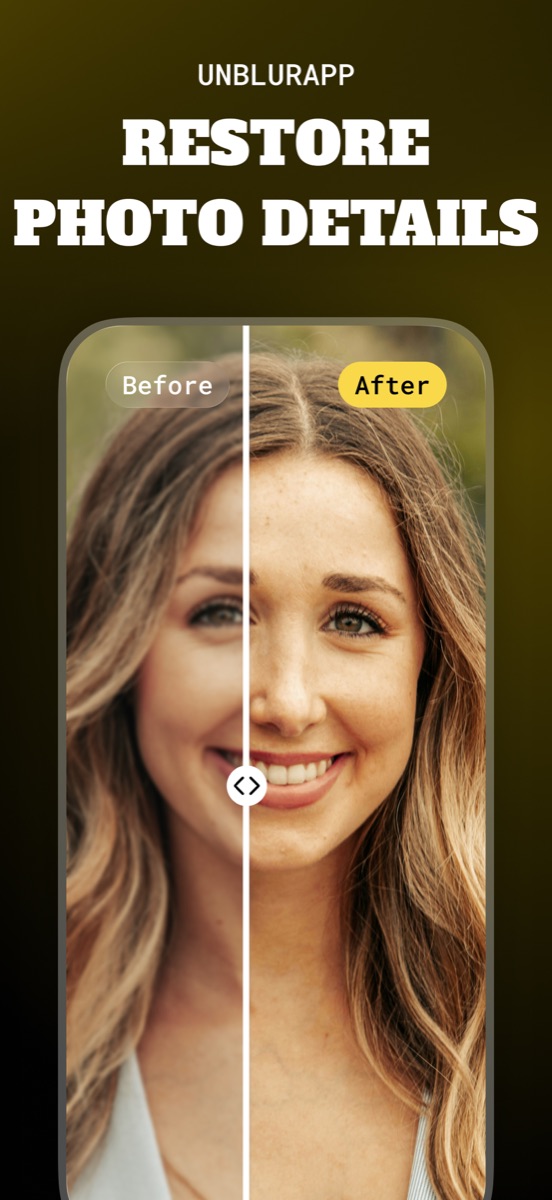
Skip the deblur pass and go straight to upscaling, which generates detail instead of trying to recover what was thrown away. Before that, spend thirty seconds looking for a better copy, because the original in the sender’s camera roll beats anything processing can do.
The tool for this is Unpixelate an image.
Practical notes
- Ask the sender to share the original through a file transfer or email attachment instead of the chat
- On both iPhone and Android, photos saved from a chat are already the compressed version, so check the source first
- Expect a plausible reconstruction, not the original: fine text and patterns will be wrong
Questions
Why does the same photo look fine on the sender’s phone?
They are looking at the original. The version that reached you was compressed for transmission, and each forward compounds it.
Does sharpening help a WhatsApp photo?
No. Sharpening hardens the compression blocks and makes them more visible. Upscaling is the tool for this case.
Going deeper
How to unpixelate an image explains the method behind this, including what it cannot fix.